
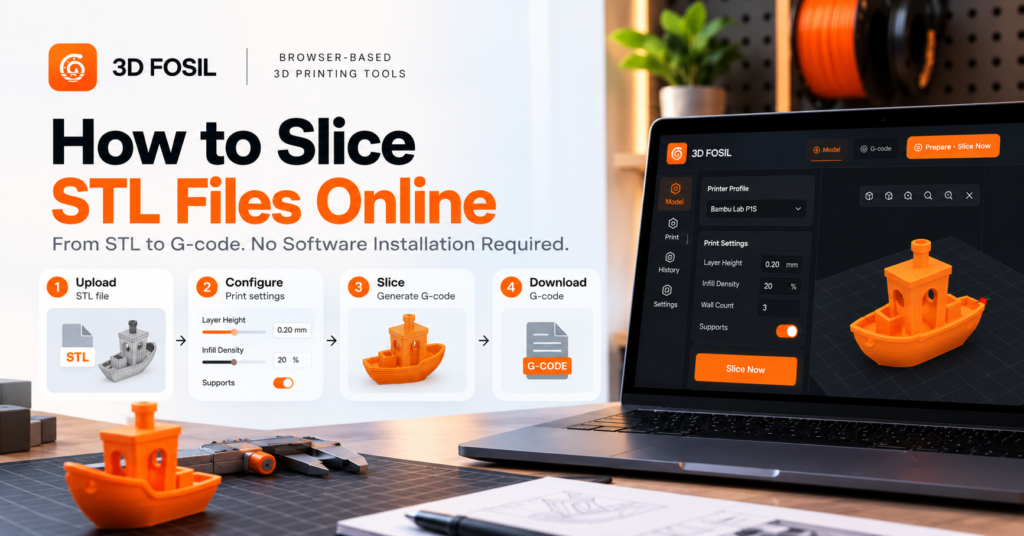
You don’t need to install desktop software to prepare an STL file for 3D printing.
With an online STL slicer, you can upload a 3D model, configure printing settings, and generate G-code directly from your browser.
Whether you’re new to 3D printing or simply looking for a faster way to prepare your models, browser-based slicing provides a convenient alternative to traditional desktop applications.
In this guide, we’ll walk through the process of slicing STL files online using 3D Fosil, from uploading your model to downloading printer-ready G-code.
What Does It Mean to Slice an STL File?
Slicing an STL file means converting a 3D model into layers and generating the instructions a 3D printer needs to manufacture the object.
An STL file contains the surface geometry of a 3D model. It describes the object’s shape but doesn’t include the printing instructions required by a 3D printer.
A slicer processes this geometry and calculates:
- Individual printing layers
- Print head movements
- Material extrusion paths
- Wall and infill structures
- Support structures when required
- Printing speeds and temperatures
- Other printer-specific instructions
These instructions are typically saved as a G-code file.
For most consumer FDM/FFF 3D printers, G-code provides the commands needed to produce the physical object.
STL vs. G-code: What’s the Difference?
| Feature | STL File | G-code File |
|---|---|---|
| Primary purpose | Describes 3D model geometry | Contains printer instructions |
| File extension | .stl | .gcode or printer-specific format |
| Contains model geometry | Yes | Contains calculated toolpaths |
| Contains print settings | No | Reflects slicing configuration |
| Printer-specific | Generally no | Usually yes |
| Directly printable | Not without processing | Yes, on compatible printers |
An STL file is the starting point. G-code is the output generated after slicing.
The conversion process is essential because different printers, materials, and print settings require different instructions.
Can You Slice STL Files Online Without Installing Software?
Yes. You can slice STL files online using a browser-based 3D slicer without installing a traditional desktop application.
Online slicing platforms provide tools for importing models, selecting printers, configuring printing parameters, and generating G-code through a web interface.
This approach can be useful when:
- You don’t want to install additional software.
- You’re working on a computer with installation restrictions.
- You switch between different computers.
- You need quick access to slicing tools.
- You prefer managing model preparation in a browser.
3D Fosil provides an online slicing environment that combines model preparation, printer configuration, and G-code generation.
You can access the platform at 3dfosil.com.
How to Slice an STL File Online Using 3D Fosil
The following steps explain how to prepare and slice a model using 3D Fosil.
Step 1: Open the 3D Fosil Online Slicer
Start by opening 3D Fosil in your web browser.
Access the platform and navigate to the Print section, where the browser-based slicing workspace is available.
The interface includes a 3D model viewport, transformation controls, printer configuration options, and detailed printing settings.
Unlike traditional desktop slicers, you don’t need to download and install a separate application.
What you’ll need:
- A compatible web browser
- An internet connection
- A 3D model file
- A supported 3D printer configuration
For this tutorial, we’ll use an STL model.
Step 2: Upload Your STL File
Import your STL file into the slicing workspace.
Once the model is loaded, it appears in the 3D viewport.
The viewport allows you to inspect the model before slicing.
Check that:
- The model has loaded correctly.
- Its dimensions are appropriate.
- It fits within your printer’s build volume.
- Its orientation is suitable for printing.
- It is positioned correctly on the build plate.
For example, if you’re printing a small mechanical component, you may want to position its largest flat surface against the build plate.
This can improve bed contact and potentially reduce support requirements.
Tip: Always verify the model’s dimensions after importing it. STL files don’t inherently define a measurement unit, so unit mismatches can result in incorrectly scaled models.
Step 3: Select Your 3D Printer
Before generating G-code, select the printer you intend to use.
This is one of the most important steps in the slicing process.
Different 3D printers have different hardware specifications, including:
- Build volume
- Nozzle diameter
- Maximum printing speeds
- Supported temperatures
- Firmware requirements
- Motion systems
3D Fosil provides printer profiles for supported 3D printers.
Select the profile that matches your printer model.
For example, if you’re using a Creality Ender-3 V2, choose its corresponding profile when available.
Why does this matter?
G-code generated for one printer may not be compatible with another.
Selecting the correct profile helps ensure that the slicer uses appropriate machine dimensions and configuration parameters.
Always confirm the selected profile matches your printer’s actual hardware configuration.
Step 4: Choose Your Filament and Material Settings
Next, configure the material you plan to use.
Common FDM printing materials include:
PLA
A popular material for beginners, decorative objects, and general-purpose printing.
PETG
Often selected for functional parts that require greater toughness or temperature resistance than standard PLA.
ABS
Used for applications requiring additional temperature resistance, although it typically requires more controlled printing conditions.
TPU
A flexible material commonly used for protective components, grips, and other elastic parts.
The appropriate settings depend on the material manufacturer, printer, nozzle, and printing environment.
For example, PLA and PETG often require different nozzle temperatures and cooling configurations.
Choose the appropriate material profile or configure the available settings based on your filament specifications.
Step 5: Position and Orient Your Model
Model orientation affects several aspects of the printing process.
These include:
- Surface quality
- Support requirements
- Printing time
- Material consumption
- Mechanical strength
3D Fosil includes transformation controls that allow you to adjust a model’s position and orientation within the build area.
Depending on the geometry, you may need to rotate the model to achieve a more suitable printing position.
For example, consider a rectangular bracket with mounting holes.
Printing the bracket flat may reduce the need for supports, while printing it vertically could change its strength characteristics and surface finish.
There isn’t always one universally correct orientation.
The best choice depends on the model’s geometry and intended use.
Tip: For functional parts, consider the direction of mechanical loads. FDM prints can be weaker between layers than within a layer.
Step 6: Configure Your Layer Height
Layer height determines the thickness of each printed layer.
It is one of the most important settings affecting print detail and printing time.
For a typical FDM printer equipped with a 0.4 mm nozzle, common layer heights include:
| Layer Height | Typical Use |
|---|---|
| 0.12 mm | Fine details and smoother curved surfaces |
| 0.16 mm | Detailed prints with moderate printing time |
| 0.20 mm | General-purpose printing |
| 0.24 mm | Faster prints with moderate detail |
| 0.28 mm | Draft prints and larger functional objects |
These are illustrative starting points rather than universal settings. Suitable layer heights depend on nozzle size, printer capabilities, and material.
Smaller layer heights generally improve vertical resolution but increase the number of layers required.
Larger layer heights reduce the number of layers but may make individual layer lines more visible.
Recommended starting point: For many general-purpose PLA prints using a 0.4 mm nozzle, 0.20 mm is a practical initial layer height.
Step 7: Adjust Wall Thickness and Infill
Wall thickness and infill settings influence the internal structure and mechanical properties of your printed object.
Wall Thickness
Walls form the outer shell of the model.
Increasing the number of wall perimeters can improve strength in many applications, although the result depends on geometry and loading conditions.
For a 0.4 mm nozzle, a starting configuration might use:
- 2 wall perimeters for lightweight decorative models
- 3 wall perimeters for general-purpose parts
- 4 or more wall perimeters for parts requiring additional strength
Actual wall thickness depends on the configured extrusion line width.
Infill Density
Infill is the internal structure created inside a 3D printed object.
Different infill percentages affect material consumption, printing time, and mechanical properties.
| Infill Density | Typical Application |
|---|---|
| 5–10% | Lightweight decorative objects |
| 15–20% | General-purpose models |
| 25–40% | Functional parts requiring additional internal support |
| 50%+ | Selected high-density applications |
Higher infill does not automatically produce a stronger part in every situation.
Wall configuration, material, print orientation, and infill pattern can have a greater influence on performance.
For many everyday models, 15–20% infill is a reasonable starting point.
Step 8: Review Supports and Additional Settings
Some models contain overhangs that cannot be printed reliably without additional support.
Support structures provide temporary material beneath these areas.
Before slicing, review whether your model requires supports.
Other settings worth checking include:
Print Speed
Controls how quickly the printer performs different movements.
Build Plate Adhesion
Helps improve the connection between the first layer and the printing surface.
Cooling
Controls the cooling behavior during printing.
Retraction
Helps reduce unwanted filament movement and stringing during travel moves.
Top and Bottom Layers
Determine the solid surfaces at the top and bottom of the model.
3D Fosil provides detailed slicing parameters for configuring these aspects of the printing process.
If you’re new to 3D printing, starting with a suitable printer profile and changing only a few settings at a time can make troubleshooting easier.
Step 9: Slice Your STL File
Once your model and printing settings are ready, you can begin slicing.
In the 3D Fosil slicing interface, use the Prepare · Slice Now action.
The slicer processes the model based on the selected printer profile and printing parameters.
During this process, the software calculates the layer-by-layer toolpaths needed to manufacture the object.
The resulting output is G-code.
Depending on model complexity and processing requirements, slicing duration can vary.
Step 10: Review and Download Your G-code
After slicing, review the available output and confirm that the model has been processed correctly.
Where available, use the G-code preview to inspect the generated toolpaths.
Pay particular attention to:
- First-layer paths
- Support structures
- Wall and infill patterns
- Model orientation
- Unexpected gaps or missing features
You can then download the generated G-code.
Before sending it to your printer, confirm that the file is compatible with your machine and that the selected material and printing settings are appropriate.
Your STL model is now prepared for printing.
How to Choose the Best Settings for Your First Print
If you’re new to slicing, it’s easy to become overwhelmed by the number of available parameters.
The good news is that you don’t need to modify every setting to prepare a basic model.
For a typical PLA print using a compatible FDM printer with a 0.4 mm nozzle, the following values can serve as an initial reference.
| Setting | Example Starting Value |
|---|---|
| Material | PLA |
| Nozzle Diameter | 0.4 mm |
| Layer Height | 0.20 mm |
| Wall Perimeters | 3 |
| Infill Density | 15–20% |
| Infill Pattern | Gyroid or Grid |
| Supports | Only when needed |
| Print Speed | Follow the printer’s validated profile |
| Nozzle Temperature | Follow filament manufacturer guidance |
| Bed Temperature | Follow filament manufacturer guidance |
These are general examples, not universal recommendations.
Always prioritize the specifications of your printer, filament, and selected slicing profile.
Common Mistakes When Slicing STL Files
Even experienced users occasionally encounter slicing problems.
Understanding the most common mistakes can help you avoid unnecessary failed prints.
Incorrect Printer Profile
Using a profile that doesn’t match your printer can result in incorrect machine instructions.
Solution: Verify the printer model, build volume, nozzle configuration, and firmware compatibility.
Incorrect Model Scale
STL files don’t store a standardized unit definition.
A model designed in inches may be interpreted in millimeters, resulting in an unexpected size.
Solution: Check the imported dimensions before slicing.
Poor Model Orientation
An unsuitable orientation can increase support requirements or reduce mechanical strength.
Solution: Evaluate how the object will be used and position it accordingly.
Excessive Infill
Using very high infill percentages can increase material consumption and printing time without providing proportional strength improvements.
Solution: Choose infill based on the model’s actual requirements.
Missing Supports
Unsupported overhangs may cause sagging, poor surface quality, or print failure.
Solution: Review the model geometry and enable suitable supports where required.
Ignoring Model Geometry Problems
Some STL files contain non-manifold edges, open surfaces, or other geometry defects.
These problems can affect slicing results.
Solution: Analyze the model before slicing.
3D Fosil includes STL analysis tools that can help identify potential printability concerns.
Why Use 3D Fosil for Online STL Slicing?
3D Fosil is designed to bring essential 3D printing preparation tools together in a browser-based environment.
Instead of installing a traditional desktop slicer, users can access the platform through a compatible web browser.
Its core capabilities include:
Browser-Based Slicing
Import models, configure print settings, and generate G-code without installing dedicated desktop slicing software.
STL Analysis
Review models for potential geometry and printability issues before preparing them for printing.
Printer Profiles
Select from supported printer configurations and customize printing parameters.
Advanced Print Settings
Adjust layer height, wall thickness, infill, and other slicing parameters.
Printing Estimates
Review available estimates for printing time, material consumption, and costs.
AI-Assisted Print Setup
Use the platform’s AI-assisted features to evaluate printing configurations and receive optimization suggestions.
Together, these capabilities provide a workflow that connects model analysis with print preparation.
Online STL Slicer vs. Desktop Slicer
Online and desktop slicers share the same fundamental objective, but they differ in how users access and manage the software.
| Feature | Online STL Slicer | Desktop Slicer |
|---|---|---|
| Software installation | Not required | Required |
| Browser access | Yes | Generally not the primary interface |
| Internet connection | Generally required | Often supports offline use |
| Software updates | Managed by the platform | Managed through application updates |
| Printer profiles | Platform-dependent | Application-dependent |
| Advanced settings | Platform-dependent | Application-dependent |
| Model processing | Depends on implementation | Often performed locally |
| Accessibility | Through supported browsers | Through supported operating systems |
Desktop slicers remain valuable, particularly for offline workflows and specialized printer integrations.
However, online slicers offer a practical alternative for users who prefer browser-based access and minimal installation requirements.
Frequently Asked Questions
Can I slice an STL file online for free?
Yes. Some online slicing platforms offer free access to their core features.
3D Fosil provides free browser-based slicing and G-code generation, subject to its available features and usage conditions.
Do I need Cura to slice an STL file?
No. Cura is a popular desktop slicer, but it isn’t the only option.
Browser-based tools such as 3D Fosil allow you to slice STL files without installing Cura.
Can I convert STL to G-code online?
Yes. An online 3D slicer can convert an STL model into G-code using the selected printer profile and slicing settings.
Does an STL file contain G-code?
No. An STL file describes the surface geometry of a 3D model.
G-code contains the instructions generated by a slicer for a compatible printer.
What is the best layer height for 3D printing?
For many FDM printers using a 0.4 mm nozzle, 0.20 mm is a practical starting point.
Smaller layer heights may improve vertical detail, while larger layer heights can reduce printing time.
Can I use an online slicer on macOS?
Yes. Browser-based slicers can be accessed on macOS using a supported browser.
The same principle applies to Windows and Linux, subject to platform compatibility.
Is online slicing suitable for beginners?
Yes. Online slicing can be a convenient option for beginners because it eliminates the need to install a separate desktop application.
Users still need to understand basic printer compatibility and printing settings.
Can I use G-code generated online with any 3D printer?
Not necessarily.
G-code compatibility depends on the printer’s firmware, hardware configuration, and supported command set.
Always select the correct printer profile and verify compatibility before printing.
Start Slicing STL Files Online With 3D Fosil
Preparing a model for 3D printing doesn’t have to begin with downloading and installing software.
With an online STL slicer, you can upload your model, configure printing settings, and generate G-code directly from your browser.
3D Fosil combines this process with STL analysis, printer profiles, and printing preparation tools.
Whether you’re printing a simple decorative object or preparing a functional prototype, the platform provides a convenient way to manage the steps before printing.
Upload your model. Configure your settings. Generate G-code.
Ready to try browser-based 3D slicing?
Visit 3dfosil.com and start slicing your STL files online.