
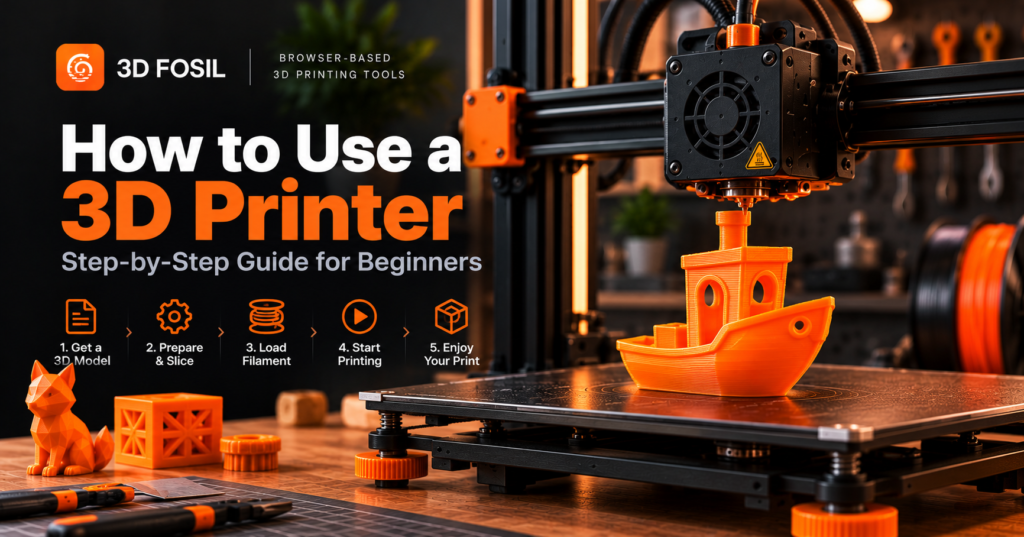
Getting started with 3D printing can feel complicated.
You have a machine, a spool of filament, and a digital model. But how do you turn those into a finished object?
The good news is that modern 3D printers have made the process more accessible than ever.
You don’t need to be an engineer or an experienced designer to complete your first successful print.
To use a 3D printer, you need to prepare a digital 3D model, select the correct material, configure your printer, slice the model into printing instructions, and start the printing process.
This guide walks you through each step, from preparing your equipment to removing your first finished print.
We’ll focus primarily on FDM (Fused Deposition Modeling) printers, which are among the most common options for beginners.
What Do You Need to Start 3D Printing?
Before starting your first print, make sure you have the necessary equipment and materials.
Essential Equipment
| Item | Purpose |
|---|---|
| FDM 3D Printer | Manufactures the physical object |
| Filament | Supplies the printing material |
| 3D Model | Defines the object’s geometry |
| Slicing Software | Converts the model into printing instructions |
| Computer or Compatible Device | Prepares and transfers printing files |
| Build Plate | Provides the printing surface |
| Basic Maintenance Tools | Helps with cleaning and maintenance |
Some printers include automatic calibration, built-in cameras, wireless connectivity, and other features.
However, these are not essential for understanding the basic printing workflow.
Which Filament Should Beginners Use?
PLA is generally the easiest material for beginners.
It is widely available, relatively affordable, and typically requires less demanding printing conditions than ABS or ASA.
PLA is suitable for:
- Decorative objects
- Small prototypes
- Educational projects
- Desk accessories
- Simple household items
For your first print, standard PLA is usually a practical choice.
Step 1: Set Up Your 3D Printer
Before printing, make sure your machine is correctly assembled and positioned.
Choose a Suitable Location
Place your printer on a stable, level surface.
The surrounding environment should provide:
- Adequate ventilation
- Sufficient clearance around moving components
- Access to a suitable electrical outlet
- Protection from accidental contact
- Appropriate temperature conditions
Avoid placing the printer near flammable materials or where children and pets can easily access hot or moving components.
Check the Printer Assembly
If your printer requires assembly, follow the manufacturer’s instructions.
Verify that:
- Mechanical components are securely installed.
- Belts have appropriate tension.
- Cables are properly connected.
- The print head moves freely.
- The build plate is correctly installed.
- The filament path is unobstructed.
Do not modify electrical components or bypass safety systems.
Update Printer Firmware if Necessary
Some manufacturers provide firmware updates that improve compatibility, reliability, and printer functionality.
Use only firmware intended for your exact printer model and follow the manufacturer’s update procedure.
Step 2: Level the Build Plate
Proper first-layer adhesion is essential for successful 3D printing.
If the nozzle is too far from the build plate, the filament may not adhere correctly.
If the nozzle is too close, extrusion can become restricted or the nozzle may damage the printing surface.
Manual Bed Leveling
On printers with manual leveling, the process generally involves adjusting the distance between the nozzle and build plate.
A typical workflow is:
- Follow the manufacturer’s preparation procedure.
- Home the printer’s axes.
- Move the nozzle to the recommended leveling positions.
- Adjust the bed-leveling mechanisms.
- Check the nozzle-to-bed clearance.
- Repeat until the surface is properly aligned.
Some printers use a paper-based method to establish an initial nozzle clearance.
However, the exact procedure depends on the machine.
Automatic Bed Leveling
Many modern printers include automatic bed-leveling systems.
These systems measure the build surface and compensate for certain height variations.
However, automatic leveling doesn’t eliminate the need for correct mechanical alignment and Z-offset configuration.
What Is Z-Offset?
Z-offset determines the nozzle’s effective vertical position relative to the build surface.
An incorrect Z-offset can cause:
- Poor first-layer adhesion
- Excessive first-layer compression
- Nozzle scraping
- Uneven extrusion
- Failed prints
For beginners, a first-layer calibration print is one of the easiest ways to verify the setup.
Step 3: Load the Filament
Once the printer is ready, the next step is loading the printing material.
For this example, we’ll use PLA filament.
How to Load PLA Filament
- Place the filament spool on its holder.
- Make sure the filament can unwind smoothly.
- Select the printer’s filament-loading function.
- Heat the nozzle to the recommended loading temperature.
- Insert the filament into the extruder.
- Follow the printer’s loading procedure.
- Confirm that filament extrudes consistently.
The exact loading process differs between direct-drive and Bowden extrusion systems.
Recommended PLA Temperature
Standard PLA commonly uses nozzle temperatures between 190°C and 220°C.
However, the correct temperature depends on the filament manufacturer and printer.
Always follow the filament’s recommended temperature range.
Common Filament Loading Problems
If the filament doesn’t load correctly, check for:
- Incorrect nozzle temperature
- Filament tangles
- Extruder gear problems
- Obstructions in the filament path
- Partial nozzle blockages
Never force filament through a blocked extrusion system.
Step 4: Download or Create a 3D Model
Every 3D print begins with a digital design.
You can create your own model or use an existing design.
Common 3D Model Formats
| Format | Description |
|---|---|
| STL | Widely used format describing surface geometry |
| OBJ | Supports geometry and additional model information |
| 3MF | Modern format capable of storing geometry and manufacturing-related information |
The best format depends on your software and printing workflow.
What Should You Print First?
For your first print, choose something simple.
Good beginner projects include:
- Calibration cube
- Small storage container
- Cable organizer
- Phone stand
- Simple geometric object
Avoid models with extensive supports, very thin walls, or complicated moving components.
Do You Need to Know 3D Modeling?
No.
You can begin by downloading existing models.
As you gain experience, you can learn CAD software to design your own objects.
Step 5: Check Your STL File Before Printing
Not every 3D model is immediately suitable for printing.
A model may contain geometry problems that affect slicing or manufacturing.
Common issues include:
- Open surfaces
- Non-manifold geometry
- Incorrect dimensions
- Very thin walls
- Intersecting geometry
- Unsupported features
Why STL Analysis Matters
Analyzing a model before printing can help identify potential problems.
For example, a decorative model may contain thin features that cannot be reliably manufactured with your selected nozzle diameter.
Similarly, an object may have dimensions that exceed your printer’s build volume.
Identifying these problems early can reduce wasted time and material.
Analyze Your Model With 3D Fosil
3D Fosil provides browser-based STL analysis tools.
You can upload a supported model, select a printer profile, and review available analysis results before printing.
This can help you evaluate potential printability concerns without installing additional desktop software.
Keep in mind that automated analysis cannot guarantee a successful print.
Printer condition, filament quality, and slicing settings also affect the result.
Step 6: Slice Your 3D Model
Slicing is one of the most important steps in the printing process.
A slicer converts a digital 3D model into layers and generates the instructions required by the printer.
For most FDM printers, these instructions are stored in a G-code file.
What Does a Slicer Do?
A slicer determines:
- Where the nozzle should move
- How much filament should be extruded
- How each layer should be constructed
- Where support structures are needed
- Which temperatures should be used
- How quickly the printer should operate
These instructions are based on your printer profile, material, and selected printing parameters.
Can You Slice STL Files Without Installing Software?
Yes.
Traditional slicers are commonly installed on a computer, but browser-based slicing tools provide an alternative.
With 3D Fosil, you can prepare compatible FDM models directly from your browser.
How to Slice an STL File Online
- Open 3D Fosil.
- Upload your STL or another supported model file.
- Select your 3D printer profile.
- Choose the appropriate filament.
- Position the model on the build plate.
- Configure the printing settings.
- Start the slicing process.
- Generate and download the G-code.
Always verify that the generated instructions are compatible with your printer.
Step 7: Configure Your 3D Printing Settings
Before slicing, you need to select suitable printing parameters.
These settings influence print quality, strength, material consumption, and printing time.
Beginner PLA Settings
For a typical FDM printer with a 0.4 mm nozzle, the following values provide general starting points.
| Setting | Suggested Starting Value |
|---|---|
| Nozzle Temperature | 200–210°C |
| Bed Temperature | 55–60°C |
| Layer Height | 0.20 mm |
| Infill Density | 15–20% |
| Wall Perimeters | 3 |
| Print Speed | Use a validated printer profile |
| Cooling | Usually high after initial layers |
| Support Structures | Only when required |
| Bed Adhesion | Skirt or brim as appropriate |
These settings are illustrative.
Always prioritize the manufacturer’s recommendations and validated printer profiles.
What Is Layer Height?
Layer height determines the thickness of each printed layer.
Smaller layers generally improve vertical detail but increase printing time.
Larger layers reduce the number of layers but may produce more visible layer lines.
For many printers with a 0.4 mm nozzle, 0.20 mm is a practical starting point.
What Is Infill Density?
Infill is the internal structure of a printed object.
Common infill densities include:
- 10% for certain decorative models
- 15–20% for general-purpose objects
- 25–40% for some functional applications
- Higher values for specific mechanical requirements
More infill doesn’t automatically produce a stronger part.
Wall thickness, material selection, geometry, and print orientation can have a greater influence on performance.
What Are Support Structures?
Supports are temporary printed structures that help manufacture overhangs and other features.
They are removed after printing.
Supports increase material consumption and may affect surface quality.
Proper model orientation can sometimes reduce the need for supports.
Step 8: Generate and Review the G-code
After configuring your settings, the slicer generates printing instructions.
What Is G-code?
G-code is a machine instruction format commonly used by FDM printers.
It controls operations such as:
- Movement
- Extrusion
- Temperature
- Printing speed
- Cooling
- Layer transitions
Not every printer uses identical G-code commands.
Firmware compatibility and printer-specific instructions are important.
Check the Slicing Results
Before printing, review the available information.
This may include:
- Estimated printing time
- Filament consumption
- Support requirements
- Layer structure
- Toolpath preview
- Estimated material cost
A toolpath preview is particularly useful for detecting unexpected gaps, missing features, or excessive supports.
Estimate Printing Costs
Suppose your model requires 80 grams of filament.
If a 1 kg spool costs $20:
Cost per gram = $20 ÷ 1,000 = $0.02
Material cost = 80 × $0.02 = $1.60
The estimated filament cost is $1.60.
This excludes electricity, maintenance, labor, and other expenses.
Step 9: Transfer the G-code to Your Printer
Once the file is ready, transfer it to your printer using a supported method.
Common options include:
- SD card
- USB storage
- USB connection
- Wi-Fi
- Local network
- Manufacturer-specific software
The available methods depend on your printer.
Important Compatibility Checks
Before starting, confirm that:
- The G-code was generated for the correct printer.
- The nozzle diameter matches the profile.
- The selected filament is correct.
- Printing temperatures are appropriate.
- The model fits within the build volume.
- The printer firmware supports the generated instructions.
Using an incorrect printer profile can cause printing failures or potentially unsafe movements.
Step 10: Start Your First 3D Print
Now you’re ready to begin printing.
Select the prepared file using your printer’s interface and start the process.
The printer will typically:
- Heat the nozzle.
- Heat the build plate if required.
- Perform any configured preparation procedures.
- Begin depositing material.
- Build the object layer by layer.
Watch the First Layer
The first layer is one of the most important stages of an FDM print.
Check whether the filament adheres consistently to the build surface.
A good first layer should have:
- Consistent extrusion
- Proper adhesion
- Uniform line placement
- No significant gaps
- No excessive material buildup
If the first layer fails, stop the print and correct the problem before trying again.
Should You Leave a 3D Printer Running Unattended?
Avoid leaving a 3D printer operating without appropriate supervision and safety measures.
3D printers contain heating elements, electrical components, and moving mechanisms.
Follow the manufacturer’s operating instructions and maintain suitable fire-safety precautions.
Step 11: Remove Your Finished Print
Once printing is complete, allow the object and build plate to cool as recommended by the manufacturer.
Cooling often makes removal easier.
How to Remove a 3D Print
- Wait until the print and build surface reach a safe temperature.
- Remove the flexible build plate if your printer supports it.
- Gently flex the plate to release the object.
- Use appropriate removal tools only when necessary.
- Avoid damaging the build surface.
Do not force a print off the bed while the surface is excessively hot.
Remove Supports
If the model includes support structures, carefully remove them using suitable tools.
Take care around thin or fragile features.
Inspect the Final Object
Check for:
- Dimensional accuracy
- Surface defects
- Layer separation
- Warping
- Missing features
- Structural weaknesses
Your first print provides useful information for improving future results.
Common Beginner 3D Printing Problems
Even experienced users encounter failed prints.
The important part is understanding what caused the problem.
1. Print Not Sticking to the Bed
Possible causes:
- Incorrect Z-offset
- Dirty build plate
- Poor bed leveling
- Unsuitable bed temperature
Possible solutions:
- Clean the build surface.
- Verify bed leveling.
- Adjust Z-offset.
- Review first-layer settings.
2. Stringing
Stringing occurs when thin strands of filament appear between printed features.
Possible causes:
- Excessive nozzle temperature
- Incorrect retraction settings
- Moisture in the filament
- Unsuitable travel settings
Possible solutions:
- Adjust nozzle temperature.
- Review retraction.
- Check filament condition.
- Optimize travel movements.
3. Warping
Warping occurs when parts of a print deform or lift from the build plate.
Possible causes:
- Poor adhesion
- Temperature fluctuations
- Excessive cooling
- Material shrinkage
Possible solutions:
- Improve build plate adhesion.
- Use appropriate temperatures.
- Avoid drafts.
- Consider a brim.
4. Under-Extrusion
Under-extrusion occurs when insufficient material is deposited.
Possible causes:
- Partial nozzle blockage
- Incorrect extrusion settings
- Insufficient temperature
- Excessive printing speed
Possible solutions:
- Inspect the nozzle.
- Review material flow.
- Verify printing temperature.
- Reduce speed if necessary.
5. Layer Shifting
Layer shifting occurs when printed layers become misaligned.
Possible causes:
- Loose belts
- Mechanical obstructions
- Excessive acceleration
- Motor or motion-system problems
Possible solutions:
- Inspect mechanical components.
- Check belt tension.
- Review acceleration settings.
- Ensure the printer moves freely.
How Long Does Your First 3D Print Take?
Printing time depends on several factors.
These include:
- Model dimensions
- Layer height
- Printing speed
- Infill density
- Wall count
- Support structures
- Printer capabilities
A small calibration object may take less than an hour on some printers.
A larger or more detailed model may require several hours.
The most reliable way to estimate printing time is to slice the model using a suitable printer profile.
How Much Does It Cost to Start 3D Printing?
The initial cost depends on the printer and accessories you choose.
Typical expenses include:
| Item | Cost Consideration |
|---|---|
| 3D Printer | Main equipment investment |
| PLA Filament | Ongoing material expense |
| Maintenance Tools | Usually relatively inexpensive |
| Replacement Nozzles | Occasional maintenance expense |
| Build Plate | May require replacement over time |
| Electricity | Depends on printer and usage |
| Ventilation | Depends on material and environment |
You don’t necessarily need expensive equipment to begin.
A reliable entry-level FDM printer and standard PLA filament are sufficient for learning many fundamental techniques.
Tips for Better 3D Prints
As you gain experience, a few habits can significantly improve your results.
Start With Validated Profiles
Use printing profiles recommended by your printer or filament manufacturer.
Change One Setting at a Time
When troubleshooting, avoid changing multiple parameters simultaneously.
This makes it easier to identify which adjustment improved the result.
Keep Your Filament Dry
Moisture can affect extrusion and surface quality.
Store filament in suitable sealed containers when not in use.
Maintain Your Printer
Regularly inspect:
- Nozzle condition
- Extruder components
- Belts
- Build surface
- Cooling fans
- Mechanical movement
Check Models Before Printing
Inspect model geometry and dimensions before generating G-code.
Review Slicing Results
Use available previews and estimates to identify potential problems before starting the machine.
Frequently Asked Questions
How do you use a 3D printer for the first time?
Set up the printer, level the build plate, load suitable filament, prepare a 3D model, configure slicing settings, generate G-code, and start printing. Monitor the first layer and inspect the finished object.
Is 3D printing difficult for beginners?
Modern FDM printers are relatively accessible, but beginners need to learn basic concepts such as filament selection, slicing, bed adhesion, and printer maintenance.
What should I 3D print first?
A calibration cube, simple container, or small desk accessory is a good starting point. Choose a model with limited overhangs and minimal support requirements.
Do you need a computer to use a 3D printer?
A computer or compatible device is generally needed to prepare printing files. However, many printers can operate independently once valid instructions are transferred.
Can I use a 3D printer without installing slicing software?
Yes. Browser-based slicing tools such as 3D Fosil allow users to prepare compatible models and generate G-code without installing traditional desktop slicers.
What is the best filament for beginners?
PLA is usually recommended because it is widely available, relatively easy to print, and suitable for many beginner projects.
What temperature should I use for PLA?
Standard PLA commonly uses nozzle temperatures between 190°C and 220°C. Follow the filament manufacturer’s recommendations.
How do I know if my STL file is printable?
Check the model’s geometry, dimensions, wall thickness, and potential overhangs. STL analysis tools can help identify certain issues, but successful printing also depends on machine and material settings.
Why does my first layer fail?
Common causes include incorrect Z-offset, poor bed leveling, contaminated build surfaces, and unsuitable first-layer settings.
How long does it take to learn 3D printing?
Many beginners can complete a simple print within their first few sessions. Developing reliable troubleshooting and advanced printing skills generally requires more practice.
Can I print directly from an STL file?
Most FDM printers cannot print directly from raw STL geometry. The model normally needs to be processed by a slicer to generate printer-compatible instructions.
Is it safe to use a 3D printer at home?
Home 3D printing requires appropriate ventilation, electrical safety, fire precautions, and careful handling of hot and moving components. Follow the printer and material manufacturers’ safety guidance.
Final Thoughts: Your First 3D Print Starts With Preparation
Learning how to use a 3D printer is easier when you understand the complete workflow.
You don’t need advanced engineering knowledge to begin.
Start with a simple model, use a beginner-friendly material such as PLA, and follow a validated printer profile.
Pay particular attention to bed leveling, filament loading, slicing settings, and first-layer adhesion.
As you become more comfortable with the process, you can experiment with different materials, layer heights, infill patterns, and model designs.
3D Fosil helps simplify model preparation through browser-based STL analysis and online slicing tools.
Upload your model, select a supported printer, configure your printing parameters, and generate G-code without installing traditional desktop slicing software.
Explore 3D Fosil at 3dfosil.com.
Your next 3D print starts with the right preparation.