
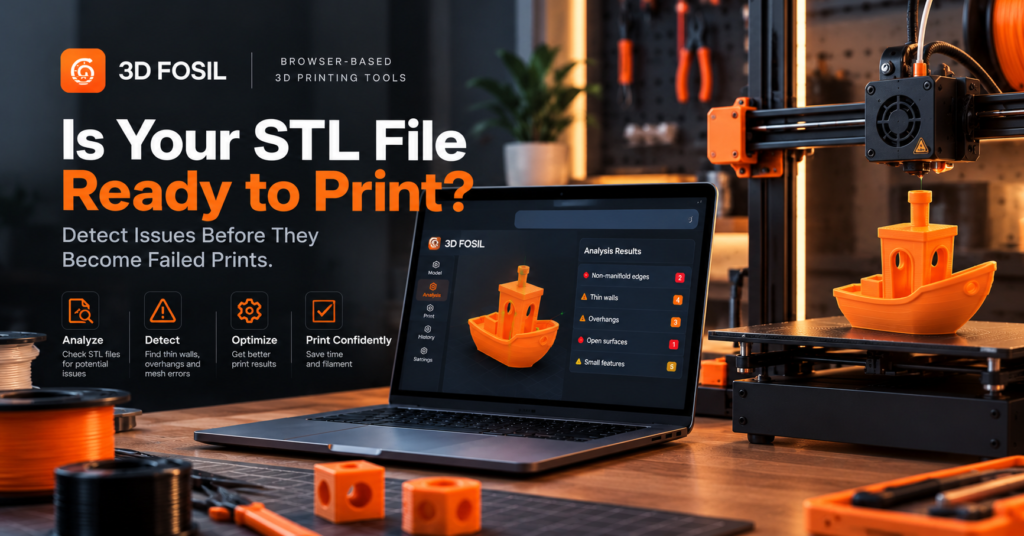
A 3D model can look perfectly fine on your screen and still fail when you try to print it.
Thin walls, open surfaces, incorrect dimensions, and unsupported overhangs are just a few problems that can turn a promising design into a failed print.
Before sending an STL file to your 3D printer, it’s worth checking whether the model is actually suitable for printing.
An STL printability check helps identify potential geometry and printing issues before slicing and production.
In this guide, we’ll explain what makes an STL file printable, which problems to look for, and how to analyze your models online using 3D Fosil.
What Makes an STL File Ready for 3D Printing?
An STL file is ready for 3D printing when its geometry can be interpreted correctly by a slicer and the model can be manufactured within the limitations of the selected printer, material, and printing settings.
A printable STL model should generally meet several conditions:
- Its geometry should form a valid, interpretable 3D object.
- The model should fit within the printer’s build volume.
- Walls and small features should be thick enough for the selected printing process.
- Overhangs should be printable or supported where necessary.
- The model should have a suitable orientation on the build plate.
- Its dimensions should match the intended physical object.
- The slicing software should be able to generate valid toolpaths.
A model doesn’t necessarily need to be perfect in every respect.
Modern slicers can handle certain mesh imperfections, and some models are intentionally designed with complex geometry.
However, identifying potential issues before printing can help reduce failed prints, wasted filament, and unnecessary troubleshooting.
Why Should You Check an STL File Before Printing?
3D printing requires time, material, and machine resources.
Even a small printing problem can become expensive when it occurs during a long print.
For example, imagine preparing a mechanical component that requires several hours to manufacture.
If the model contains walls that are too thin for the selected nozzle, those features may not print as intended.
Similarly, unsupported overhangs can produce poor surface quality or cause parts of the model to fail.
Checking the STL file before slicing can help you:
- Identify potential geometry defects.
- Detect thin walls and small features.
- Review overhangs and unsupported areas.
- Confirm model dimensions.
- Evaluate printer compatibility.
- Reduce unnecessary material consumption.
- Make better decisions about print orientation and settings.
The goal of STL analysis isn’t to guarantee a successful print. It’s to identify potential problems before they become physical printing failures.
Common STL File Problems That Affect Printability
Understanding common STL problems makes it easier to evaluate whether a model is ready for printing.
1. Non-Manifold Geometry
One of the most common STL issues is non-manifold geometry.
A manifold mesh represents a consistent surface enclosing a valid solid.
In a typical closed triangular mesh, each edge is shared by exactly two faces.
Non-manifold geometry occurs when the mesh contains structures that don’t represent a valid, consistently connected solid surface.
Examples include:
- An edge shared by more than two faces.
- Surfaces connected only at a single point.
- Internal faces that create ambiguous geometry.
- Intersections that produce invalid topology.
These problems can confuse slicing software because the boundaries between the inside and outside of the object may be unclear.
How to address it:
Inspect the mesh in a suitable modeling or repair tool. Remove unnecessary internal surfaces, correct invalid connections, and ensure the geometry represents the intended solid.
2. Holes and Open Surfaces
An STL mesh may contain missing triangles or open boundaries.
For example, a model intended to represent a solid object might have a small opening caused by an incomplete export.
Open surfaces can create ambiguity when the slicer attempts to determine which regions should contain material.
Not every open mesh is unusable, but unintended openings should be investigated.
How to address it:
Identify the open boundary and repair the missing surface using an appropriate mesh-editing tool.
After repairing the model, export the STL again and repeat the printability check.
3. Thin Walls
Thin walls are particularly important in FDM 3D printing.
A feature that is too narrow for the selected nozzle and extrusion configuration may be omitted, printed inaccurately, or produced with reduced strength.
For example, consider a model containing a 0.3 mm wall.
If you’re printing with a 0.4 mm nozzle, that wall may require special handling depending on the slicer’s thin-wall capabilities and configured line width.
The fact that a wall exists in the digital model doesn’t mean the printer can reproduce it reliably.
How to address it:
Review wall thickness relative to the selected nozzle, material, and slicing settings.
Where possible, increase the thickness of features that are too small for reliable printing.
For functional parts, consider mechanical requirements rather than relying only on the minimum printable thickness.
4. Unsupported Overhangs
An overhang occurs when part of a model extends beyond the material beneath it.
FDM printers can produce some overhangs without supports, but the achievable angle depends on several factors:
- Material
- Cooling performance
- Layer height
- Print speed
- Model geometry
- Printer capabilities
A commonly used starting guideline is to review overhangs around 45 degrees from the vertical, but this is not a universal printing limit.
Some printers and materials can handle more demanding overhangs, while others may require support at less extreme angles.
How to address it:
Consider rotating the model, adjusting print settings, or enabling support structures where needed.
5. Incorrect Model Dimensions
STL files describe geometry but don’t inherently define whether the coordinates represent millimeters, inches, or another unit.
This can cause problems when models are exported from different CAD applications.
For example, a component designed to be 2 inches long might be interpreted as 2 millimeters if the units are handled incorrectly.
Before printing, confirm that the imported dimensions match the intended physical size.
How to address it:
Check the model’s dimensions in the slicing workspace.
If the scale is incorrect, adjust it or export the model again using the appropriate units.
6. Intersecting or Overlapping Geometry
Some STL models contain surfaces that intersect or overlap.
This can happen when multiple objects are combined without properly merging their geometry.
Certain slicers can interpret overlapping solids successfully, but problematic intersections may produce unexpected toolpaths.
How to address it:
Inspect overlapping regions and determine whether the geometry should be merged, separated, or repaired.
For models intended to form a single solid object, a proper Boolean union can help create a consistent mesh.
7. Incorrect Surface Normals
Surface normals indicate the orientation of mesh faces.
In a consistently oriented closed mesh, face normals point outward.
Incorrect or inconsistent normals can make it difficult for some software to distinguish the interior from the exterior of a model.
How to address it:
Use a mesh inspection tool to identify inconsistent normals and recalculate their orientation where necessary.
How to Check an STL File Online With 3D Fosil
You don’t need to install a separate desktop application just to begin evaluating an STL model.
3D Fosil provides a browser-based STL analysis workflow designed to help users identify potential printability concerns.
Here’s how to get started.
Step 1: Open 3D Fosil
Visit 3dfosil.com and access the platform.
Navigate to the STL Analysis section.
The analysis interface allows you to upload a model and select the printer and material configuration you intend to use.
Step 2: Upload Your 3D Model
Select your model or drag and drop it into the upload area.
The analysis interface supports STL, OBJ, and 3MF model uploads.
Once you’ve selected a file, confirm that it is the correct version of the model you want to print.
If you’ve recently modified the design, make sure you’re uploading the latest export.
Step 3: Select Your Printer
Choose the 3D printer you intend to use.
Printer selection matters because printability depends partly on machine capabilities.
For example, a model that fits on a large-format printer may exceed the build volume of a smaller machine.
Likewise, nozzle configuration can affect the minimum feature sizes that can be printed reliably.
Select a profile that matches your equipment.
Step 4: Choose Your Filament Type
Select the material you plan to print with.
Common FDM materials include PLA, PETG, ABS, and TPU.
Different materials have different printing characteristics.
For example, flexible materials may behave differently from rigid materials when printing small features or complex geometries.
Choosing the intended material helps establish the context for evaluating your model.
Step 5: Start the STL Analysis
Once your model, printer, and filament are selected, start the analysis.
3D Fosil evaluates the model and provides information about potential printing concerns.
The available findings depend on the model and the analysis capabilities provided by the platform.
Review the results carefully rather than relying on a single overall assessment.
Step 6: Review Potential Issues
Look for any reported concerns that could affect the printing process.
Depending on the analysis results, these may involve model geometry, wall thickness, overhangs, dimensions, or other printability considerations.
For each issue, consider:
- What part of the model is affected?
- How serious is the potential problem?
- Can it be addressed by changing the model?
- Could a different print orientation help?
- Would adjusting slicing settings be sufficient?
Not every warning means a model is impossible to print.
Some findings may indicate areas that require additional attention rather than definitive failures.
Step 7: Make Adjustments and Recheck
If the analysis identifies a significant problem, modify the model or printing configuration as appropriate.
For geometry defects, you may need to return to your CAD or mesh-editing application.
For issues related to orientation or printing parameters, changes in the slicer may be sufficient.
After making adjustments, analyze the updated model again.
This provides an opportunity to confirm whether the original concern has been addressed.
STL Analysis vs. STL Slicing: What’s the Difference?
STL analysis and STL slicing are related, but they serve different purposes.
STL analysis evaluates a model for potential problems. STL slicing converts the model into printing instructions.
| Feature | STL Analysis | STL Slicing |
|---|---|---|
| Main purpose | Identify potential printability issues | Generate printing instructions |
| Geometry inspection | Primary focus | Used during toolpath generation |
| Wall thickness evaluation | Can identify potential concerns | Determines printable extrusion paths |
| Overhang evaluation | Helps identify difficult regions | Generates supports when configured |
| Printer configuration | Provides printability context | Determines machine instructions |
| G-code generation | No | Yes |
| Typical output | Analysis findings | G-code and slicing estimates |
Both processes can contribute to better printing preparation.
Analysis helps you understand potential risks before committing to a print.
Slicing determines how the printer will manufacture the object.
3D Fosil brings these capabilities together in a browser-based platform.
Can an STL File Be Printable Even if It Contains Errors?
Yes.
Some STL files contain minor mesh imperfections that modern slicers can interpret or repair automatically.
For example, certain slicers can resolve small gaps or overlapping surfaces during processing.
However, the outcome depends on the nature of the defect and the slicer’s capabilities.
A model that produces G-code isn’t necessarily guaranteed to print correctly.
Likewise, a warning in an analysis report doesn’t always mean the model is unusable.
The important distinction is between geometric validity and practical printability.
A geometrically valid model may still be difficult to print because of thin features, unsupported areas, or unsuitable orientation.
Conversely, some geometrically imperfect models may still produce usable prints.
That’s why printability should be evaluated in the context of the intended printer, material, and application.
How to Improve STL Printability
If your model has potential printing issues, several adjustments may improve the result.
Increase Wall Thickness
Make thin features more compatible with the intended nozzle and printing configuration.
Optimize Model Orientation
Rotate the model to reduce difficult overhangs, improve bed contact, or achieve more suitable mechanical properties.
Repair Mesh Geometry
Correct unintended holes, non-manifold edges, and inconsistent surfaces using appropriate modeling tools.
Adjust Support Settings
Use support structures where necessary to help print unsupported features.
Verify Model Scale
Confirm that the model dimensions match the intended physical object.
Choose Appropriate Print Settings
Layer height, extrusion width, speed, and material settings can influence how successfully a model is printed.
Analyze Again Before Printing
After making changes, repeat the analysis to check whether the identified concerns have been addressed.
Who Should Use an STL Printability Checker?
Beginners
New users can benefit from understanding why certain models are difficult to print.
An STL printability checker can help highlight issues that might otherwise become apparent only after a failed print.
Makers and Hobbyists
Makers frequently download or modify models from different sources.
Checking these models before printing can help identify potential issues and reduce trial and error.
Engineers
Engineers working with functional prototypes need to consider dimensions, geometry, and mechanical requirements.
Model analysis can provide an additional validation step before production.
Product Designers
Designers can use STL analysis to evaluate whether a model is suitable for the intended printing process.
3D Printing Businesses
Businesses benefit from identifying problems before committing machine time and materials.
Printability checks can support a more consistent preparation workflow.
Frequently Asked Questions
How do I know if my STL file is printable?
Check whether the model has valid geometry, suitable wall thickness, manageable overhangs, correct dimensions, and compatibility with your intended printer.
An STL analysis tool can help identify potential concerns before slicing.
Can I check an STL file online?
Yes. Browser-based STL analyzers allow you to upload a model and review potential printability issues without installing a dedicated desktop analysis application.
What is an STL printability checker?
An STL printability checker is a tool that evaluates a 3D model for geometry and manufacturing concerns that may affect the printing process.
What are non-manifold edges in an STL file?
Non-manifold edges occur when mesh topology doesn’t represent a valid solid surface.
For example, an edge shared by more than two faces is a common non-manifold condition.
Can a slicer repair STL errors automatically?
Some slicers can handle or repair certain mesh imperfections automatically.
However, complex geometry problems may require manual repair in CAD or mesh-editing software.
Why does my STL file look correct but fail to print?
A model can appear visually correct while containing thin walls, open surfaces, unsupported features, or other problems that affect manufacturing.
Does STL analysis guarantee a successful print?
No. STL analysis can identify potential issues, but actual printing results also depend on machine calibration, material condition, environmental factors, and printing settings.
Does 3D Fosil support online STL analysis?
Yes. 3D Fosil provides browser-based STL analysis tools alongside online slicing and G-code generation.
Check Your STL Files Before You Print
A successful 3D print begins with understanding your model.
Geometry defects, thin walls, unsupported overhangs, and incorrect dimensions can all affect the final result.
Identifying these concerns before printing can save time, reduce unnecessary material consumption, and make troubleshooting easier.
3D Fosil provides a browser-based environment for analyzing models and preparing them for printing.
You can review potential issues, configure your printer and material, and continue into the slicing workflow.
Analyze your model before the first layer.
Visit 3dfosil.com to explore STL analysis and online 3D slicing.